Last Tuesday, I went to bed with my phone at 87%. Woke up seven hours later expecting it fully charged, but found it at 34% instead. No apps open, screen off, just sitting there losing battery for no apparent reason.
If this sounds familiar, you’re not alone in wondering why phone battery drains fast overnight.
After dealing with this frustration multiple times and testing everything possible, I’ve figured out the real causes and fixes that actually work. This guide shares what I learned from two weeks of monitoring battery drain and testing solutions.
Why Does Phone Battery Drain Overnight?
Your phone never truly sleeps, even when the screen is off and you think it’s idle.
Understanding why my phone loses battery at night starts with knowing what happens behind that dark screen. Your phone constantly syncs emails, checks app updates, maintains network connections, and runs background tasks you never see.
Think of it like leaving your car idling in the garage overnight. The engine runs quietly, burning fuel even though you’re not driving anywhere. Your phone works the same way.
Battery drain while phone idle happens because:
Background processes keep running after the screen turns off. Apps you haven’t opened in days still work behind the scenes, syncing data and waiting for notifications.
Network connections stay active to receive calls, messages, and notifications instantly. Your phone continuously communicates with cell towers, WiFi routers, and Bluetooth devices.
System maintenance runs during “idle” time. Android and iOS perform updates, backups, and optimization when they think you’re not using the device.
The screen might be off, but your phone’s processor stays busy, and all that activity adds up over 7-8 hours of sleep.
Read Also : How to Find Instagram Password With Username?
Common Reasons Why Phone Battery Drains Fast Overnight
After monitoring battery usage for two weeks and testing different scenarios, these are the actual culprits.
Apps Draining Battery Overnight
The biggest surprise? Apps you barely use often drain more battery than the ones you use constantly.
I discovered Facebook consuming 18% of my battery overnight despite not opening it for three days. It constantly refreshed in the background, checking notifications and syncing data even though I’d turned notifications off.
Common battery-draining apps include:
Social media like Facebook, Instagram, TikTok, and Snapchat refresh content constantly to show fresh feeds the moment you open them.
Email apps sync continuously, checking multiple accounts every few minutes while you sleep.
News apps download articles and videos in background so they load instantly when opened.
Fitness apps track location and sync data throughout the night.
Real example: A weather app was updating location every 15 minutes all night on my friend’s phone, causing 40% overnight drain. After disabling background refresh for that one app, overnight drain dropped to 8%.
Battery Drain Due to Background Apps
Background apps work differently from actively draining apps. These apps need to run for legitimate reasons but consume more power than expected.
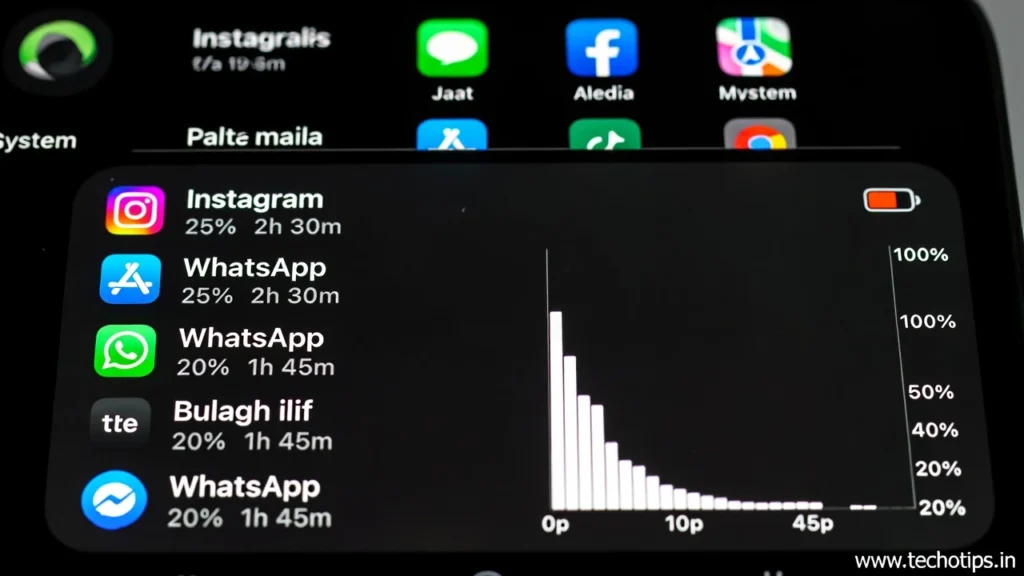
Common background drainers:
Messaging apps like WhatsApp, Telegram, or Signal stay active to receive messages instantly. This is necessary, but some apps are more efficient than others.
Cloud backup services continuously sync photos, videos, and files. Google Photos backing up overnight is useful but battery-intensive.
VPN apps maintain encrypted connections 24/7 if left running, significantly impacting battery life.
How to find them: On Android, go to Settings → Battery → Battery Usage. Look for apps with high background percentages. On iPhone, check Settings → Battery and scroll to see usage by app.
WiFi and Mobile Data Battery Drain
Weak WiFi signals make your phone work harder to maintain connection. If your bedroom sits far from the router, your phone constantly boosts signal strength trying to stay connected.
Poor cell signal forces your phone to boost antenna power, dramatically increasing drain. One bar of signal uses significantly more battery than full bars.
My solution: I tested both scenarios. In my bedroom where WiFi signal is weak, switching to airplane mode overnight reduced drain from 15% to just 3%. Obviously this won’t work if you need to receive calls.
Bluetooth Battery Drain Overnight
Bluetooth’s impact is often overstated, but it contributes in specific scenarios.
Connected to multiple devices simultaneously drains more battery. If your phone stays connected to smartwatch, earbuds, and car overnight, it constantly maintains those connections.
Real impact: With no connected devices, Bluetooth added only 2-3% overnight drain in my tests. With a smartwatch connected, it jumped to 7-8%.
Battery Drain After Software Updates
Updates often cause temporary battery issues. New features run in background, the system indexes and reorganizes data, and sometimes updates contain genuine bugs.
Why battery draining after android update happens:
New background services that weren’t there before start running automatically.
Indexing and reorganization after updates requires processing apps, photos, and files.
App incompatibility with new OS versions makes apps work harder and drain more battery.
Pattern I noticed: First 2-3 nights after an update show high drain (20-30%) as the system settles. By day 4-5, it usually normalizes. If it doesn’t improve after a week, something else is wrong.
How to Fix Overnight Battery Drain Step-by-Step
These android battery drain overnight fix methods actually worked for me and others I’ve helped, listed by effectiveness.
Step 1: Identify Battery-Draining Apps
On Android: Settings → Battery → Battery Usage. Look at the chart showing last 24 hours. Tap it to see which apps used battery overnight specifically.
On iPhone: Settings → Battery, scroll to see app usage. Toggle “Show Activity” to see background versus screen-on usage.
Fix: Long-press the app icon → App Info → Battery → Background restriction → Restricted. This prevents background running unless you actively use the app.
Step 2: Disable Background App Refresh
Android method:
Settings → Apps → See all apps → Three dots → Special access → Battery optimization. Turn ON battery optimization for all apps except phone, messages, and alarm.
For specific apps: Settings → Apps → [App name] → Mobile data & WiFi → Background data → Toggle OFF.
iPhone method:
Settings → General → Background App Refresh → Toggle off entirely or select individual apps.
My results: Disabling background refresh for social media apps alone cut overnight drain from 18% to 11%.
Step 3: Control Network Connections
WiFi optimization:
If signal is weak in your bedroom, use airplane mode overnight or switch to mobile data.
Settings → Network & Internet → WiFi → WiFi preferences → Turn off “Turn on WiFi automatically.”
Mobile data control:
For areas with poor signal, airplane mode makes the biggest difference. Your phone won’t waste battery searching for signal.
If you need calls, enable WiFi calling and use airplane mode with WiFi on.
Bluetooth fix:
Disconnect unnecessary devices before sleeping.
Settings → Connected devices → Connection preferences → Bluetooth → Turn off Bluetooth scanning.
Step 4: Adjust Display Settings
Display timeout: Settings → Display → Screen timeout → Set to 30 seconds. Accidentally waking the screen drains battery fast.
Ambient display: Settings → Display → Lock screen → Turn off “Always show time and info” if available.
Lift to wake: Disable this if your phone moves at night on your bedside table. Each screen wake uses power.
Step 5: Enable Battery Saver Mode
Android battery saver:
Settings → Battery → Battery Saver → Turn on manually before bed, or schedule automatic activation at night.
Battery saver limits background activity, reduces brightness, and disables always-on display.
iPhone Low Power Mode:
Settings → Battery → Low Power Mode → Toggle on.
Smart scheduling: Schedule battery saver to turn on automatically at bedtime. Settings → Battery → Battery Saver → Set schedule → Based on routine.
Step 6: Check for Wakelocks
What are wake locks: Apps or processes preventing your phone from deep sleep, keeping it partially awake all night.
How to check:
Install AccuBattery from Play Store (easiest option, no setup needed).
Run overnight, check in morning for apps causing wakelocks.
Look for abnormally high “wake lock” times.
My experience: Google Play Services was causing 4 hours of wake locks overnight. A simple restart fixed it, reducing overnight drain from 22% to 8%.
When Battery Drain Is a Serious Problem
Sometimes overnight drain indicates genuine hardware or security issues beyond settings.
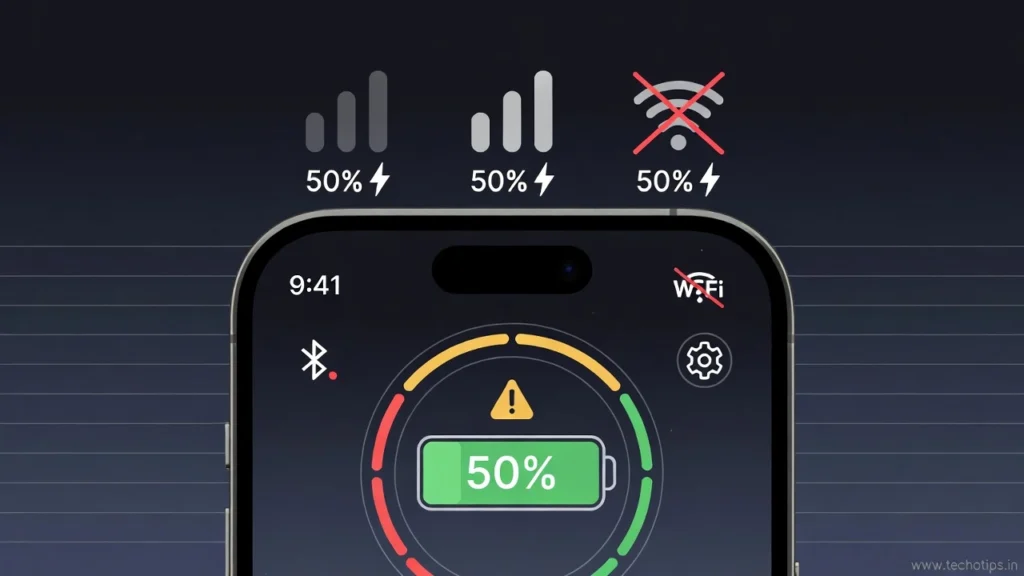
Battery Health Causing Overnight Drain
How to check battery health:
Android: Download AccuBattery. Let it run for a few days to assess capacity compared to original.
iPhone: Settings → Battery → Battery Health. Look at “Maximum Capacity” percentage.
Warning signs:
Maximum capacity below 80% means significant degradation.
Phone gets unusually warm overnight despite being idle.
Sudden percentage drops (60% to 30% in minutes while doing nothing) indicate failing battery cells.
Real case: My dad’s phone lost 45% overnight. Battery health showed 68% maximum capacity after 3 years. Replaced battery for $50, overnight drain dropped to 5%.
Malware Causing Battery Drain
How malware drains battery:
Cryptomining uses your processor to mine cryptocurrency in background, causing massive battery and heat issues.
Spyware constantly tracks location and uploads data.
Adware loads advertisements invisibly in background.
Signs of malware:
Phone is hot even when idle overnight.
Unknown apps appear that you didn’t install.
Battery drains extremely fast (50%+ overnight) suddenly after downloading new app.
Data usage is unusually high.
How to remove:
Boot into Safe Mode. If drain stops, a downloaded app is the culprit.
Check recent installs. Settings → Apps → Sort by install date. Uninstall anything suspicious.
Run malware scan with Malwarebytes or similar reputable app.
Factory reset if nothing else works. Backup first, then Settings → System → Reset → Erase all data.
How to Prevent Battery Drain in the Future
After fixing immediate problems, these overnight battery saving tips prevent recurrence.
Phone Battery Optimization Settings
Android optimization:
Settings → Battery → Adaptive Battery → Turn ON. This learns usage patterns and restricts rarely-used apps.
Settings → Display → Adaptive brightness → Turn ON.
iPhone optimization:
Settings → Battery → Optimized Battery Charging → Turn ON.
Settings → Privacy → Location Services → Set apps to “While Using” instead of “Always.”
Regular Maintenance Tips
Weekly checks:
Review battery usage stats to catch new problem apps early.
Clear cache for heavy apps. Settings → Apps → [App name] → Storage → Clear cache.
Restart phone once weekly. Restarts clear memory leaks and temporary issues.
Monthly maintenance:
Update all apps. Outdated apps sometimes have battery drain bugs.
Check for system updates with battery optimization improvements.
Review app permissions. Settings → Privacy → Permission manager.
My maintenance schedule: Every Sunday night, I restart the phone, check battery usage, and update apps. Takes 5 minutes and prevents most issues.
Read Also :Samsung Galaxy Ultra Series: Should You Buy S24, Wait for S25, or Hold Out for S26?
Final Thoughts
After weeks of testing fixes for why phone battery drains fast overnight, the most important lesson? There’s rarely one single cause.
Usually it’s a combination of background apps, network issues, and non-optimal settings. Once you identify and fix the main culprits, overnight drain drops dramatically.
My phone went from losing 18-25% overnight to just 3-5% after implementing these fixes. Start with the easiest solutions first: restrict background data for social media, enable battery saver at night, and check for obvious app issues. Most people find their solution within the first three fixes.
Frequently Asked Questions
Why does my Android phone battery drain overnight even in airplane mode?
Airplane mode stops network connections but doesn’t disable all battery usage. Apps can still run in background, alarm clocks stay active, and system processes continue. Check for apps with wakelocks preventing deep sleep or battery-draining apps that don’t require network. Even in airplane mode, a phone with many background processes can lose 5-10% overnight.
Is it normal for phone battery to drain 10% overnight?
Not really. A healthy phone with optimized settings should lose only 2-5% overnight during 7-8 hours of idle time. If you’re consistently losing 10% or more, something is keeping your phone more active than normal. Check battery usage stats to identify the cause and apply fixes from this guide.
Can a bad charger cause battery drain overnight?
Yes, surprisingly. A faulty charger might charge slowly or inconsistently, causing the battery level to fluctuate and work harder to maintain charge. Additionally, if the charger provides inconsistent power, your phone’s charging circuit works overtime, which can heat the battery and cause drain. Try a different charger to rule this out.
How do I know if my phone battery needs replacement?
Check battery health in settings. If maximum capacity is below 80%, battery degradation is significant. Other signs include phone getting hot while idle, sudden battery percentage drops, or phone shutting down at 20-30% remaining charge. If battery health is poor and software fixes don’t help overnight drain, replacement is likely needed.
Does dark mode help reduce overnight battery drain?
On phones with OLED or AMOLED screens (most modern Android phones and iPhones with OLED), dark mode can help slightly since black pixels are actually off. However, the impact overnight is minimal since the screen is off anyway. Dark mode helps more during active use. For overnight drain, focus on background apps and network connections instead.
About the Author