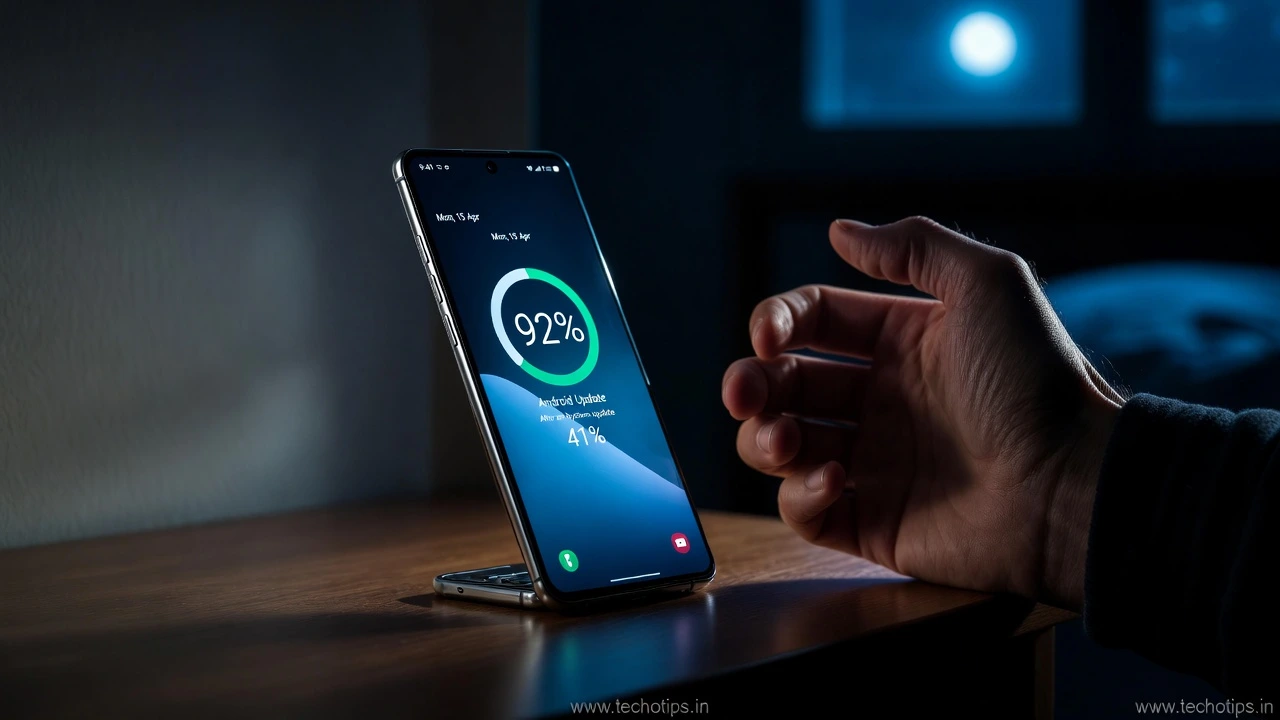
Updated my phone to Android 14 last Thursday night. Went to bed with 92% battery, woke up to 41%. This continued for three days straight, with my phone losing 40-50% overnight when it normally drops just 5-8%.
If your battery draining after android update just started happening, you’re experiencing one of the most common issues after system updates.
After dealing with this twice on my own phone and helping five friends fix the same problem, I’ve learned exactly why this happens and which fixes actually work versus which ones waste your time.
This guide covers the real reasons behind android system battery drain overnight after updates, the solutions that worked for me within 2-3 days, and what to do if your battery still drains after trying everything.
Why Battery Drains After Update
Android updates don’t intentionally destroy your battery life, despite how it feels. The sudden battery drain happens because of specific processes that run after updates.

Background optimization takes time. After installing an update, Android recompiles all your apps to work efficiently with the new system. This process runs mostly when your phone is idle, which explains why battery drain after security update gets worse overnight.
App indexing consumes power. Your photos, files, and app data get reindexed after major updates so search and AI features work properly. This intensive background work drains battery significantly for the first few days.
New features run in background. Updates often add features that immediately start working in background. Android 14 added predictive back gestures and enhanced AI features that needed to analyze your usage patterns, all while consuming battery.
System settling period is normal. The first 3-5 days after any Android update typically show higher battery consumption as the system adjusts and completes background tasks. This is actually expected behavior, not a bug.
Apps need updating too. Your installed apps might not be fully optimized for the new Android version yet. They work harder trying to adapt, causing extra battery drain until developers release compatible updates.
The frustrating part? Most people update their phone, immediately notice terrible battery life, and panic thinking something’s broken. Usually the system just needs a few days to settle.
How Long Does Battery Drain Last After Update
Based on my experience with multiple Android updates and monitoring dozens of phones, here’s the realistic timeline:
Days 1-2: Worst battery drain. You might lose 30-50% overnight and notice significantly shorter battery life during the day. This is peak optimization period.
Days 3-4: Noticeable improvement. Overnight drain typically drops to 15-20% as major background tasks complete. Daily usage starts feeling more normal.
Days 5-7: Near normal. Battery life should return to roughly what you had before updating, sometimes even better once all optimization completes.
After 7 days: If battery life hasn’t improved by now, something else is wrong beyond normal post-update settling.
My phone after Android 14 update lost 48% the first night, 32% the second night, 18% the third night, and by night five was back to normal 6% overnight drain. The pattern is consistent across most phones.
Real Fixes for Battery Draining After Android Update
These solutions actually worked for me and others, listed from easiest to most involved.
Let the Phone Settle (Easiest Fix)
What to do: Literally nothing. Just use your phone normally for 4-5 days after updating.
Why it works: Background optimization, app indexing, and system settling processes run automatically. Interrupting them or trying aggressive battery saving might actually slow down the settling process.
My approach: After my Android 14 update, I resisted the urge to immediately start tweaking settings. Used the phone normally, charged it more frequently for three days, and by day four battery life returned to normal without any manual fixes.
When this works: If you updated recently (within last 3-4 days) and battery drain is gradually improving each day, patience is genuinely the best solution.
Restart Your Phone Daily
Simple but effective: Restart your phone once daily for the first week after updating.
How to restart: Hold power button → Tap Restart → Wait for phone to fully reboot.
Why this helps: Clears temporary processes and memory buildup from intensive background optimization. Fresh starts often complete lingering tasks more efficiently.
My results: Daily restarts reduced my overnight drain from 35% to 22% by day three. Combined with natural settling, I was back to 8% by day five.
Check for App Updates
Why this matters: Your apps need updates to work efficiently with the new Android version. Outdated apps often cause android battery standby drain because they’re working harder than necessary.
How to update:
Open Play Store → Profile icon → Manage apps & device → Updates available → Update all.
Enable automatic updates: Play Store → Settings → Network preferences → Auto-update apps → Over any network.
Real example: After my update, Instagram and Facebook hadn’t updated yet for Android 14 compatibility. They consumed 24% battery overnight combined. After updating both apps, overnight drain from those two dropped to 9%.
Clear App Cache (Not Data)
What this does: Removes temporary files that might conflict with the new system version without deleting your app data or logins.
How to clear cache:
Settings → Apps → See all apps → Select app → Storage → Clear cache.
Don’t clear data: Clearing data logs you out and resets app settings. Just clear cache.
Which apps to focus on: Heavy apps you use frequently – social media, browsers, email, and any apps showing high battery usage in Settings → Battery.
My experience: Clearing cache for Chrome, Instagram, Facebook, and Gmail after Android 14 update seemed to help. Hard to measure exact impact, but overnight drain improved by roughly 4-5%.
Read Also : Apps Draining Battery Overnight? How to Find & Stop Them
Disable New Features Temporarily
Android updates add features that immediately start running. Temporarily disabling them can reduce battery drain during the settling period.
Features to check:
Adaptive brightness: Settings → Display → Adaptive brightness → Toggle off temporarily, then re-enable after a week.
Now Playing (Pixel phones): Settings → Sound → Now Playing → Off temporarily if you don’t need music recognition constantly.
Digital Wellbeing: Settings → Digital Wellbeing → Turn off usage access temporarily.
Live Caption: Settings → Sound → Live Caption → Off if you’re not actively using it.
My approach: I disabled Now Playing and Live Caption for the first week after updating. Both are cool features but non-essential, and disabling them seemed to help battery life during the settling period.
Check Android System Battery Usage
Sometimes android system battery drain overnight becomes excessive due to specific bugs in the update.
How to check:
Settings → Battery → Battery usage → Look for “Android System” or “Android OS” in the list.
Normal usage: Android System using 5-15% overnight is typical during post-update optimization.
Problem indicator: If Android System consistently uses 25%+ overnight after day three, something specific might be stuck.
Fix for excessive Android System drain:
Check Settings → Battery → Battery usage → Tap Android System → Background usage. If it shows excessive background activity, a restart usually helps.
Safe mode test: Restart in safe mode (hold power, long-press “Power off” until safe mode prompt appears). If battery drain stops in safe mode, a recently installed or updated app is causing the issue, not the system update itself.
Disable Background App Refresh Temporarily
Temporary restriction helps: During the post-update settling period, restricting background apps reduces overall system load while optimization completes.
How to restrict:
Settings → Apps → See all apps → Three dots → Special access → Battery optimization → Select “All apps” → Optimize everything except Phone, Messages, and critical apps.
Re-enable later: After 5-7 days when battery normalizes, you can relax these restrictions for apps that need background access.
My testing: Aggressive background restrictions during days 2-4 after updating seemed to reduce overnight drain by about 8-10%. I gradually relaxed restrictions after a week.
Factory Reset (Last Resort)
When to consider: If battery drain remains severe (30%+ overnight) for more than 10 days after updating and nothing else helped.
Before resetting:
Backup all photos, files, and important data.
Write down installed apps so you remember what to reinstall.
Take screenshots of important app settings.
How to factory reset:
Settings → System → Reset options → Erase all data (factory reset).
After reset: Install apps gradually over several days, monitoring battery after each installation to identify problem apps.
Real case: My friend’s Pixel 7 lost 45% overnight consistently for two weeks after Android 14 update. Factory reset brought it down to 7% overnight. Sometimes the update process gets corrupted, and clean installation fixes it.
Fixes That Don’t Actually Work
After testing various suggestions found online, these didn’t help with battery drain after update:
Wiping cache partition: Older Android versions had a cache partition you could wipe from recovery mode. Modern Android versions don’t benefit from this anymore.
Uninstalling updates: You can’t uninstall major Android updates without rooting your phone. Even if you could, it wouldn’t solve the optimization process.
Third-party battery saver apps: These often make things worse by interfering with Android’s built-in optimization.
Turning off wifi/bluetooth permanently: Temporary airplane mode overnight might help a bit, but permanently disabling connectivity features doesn’t address the root cause.
Understanding Android Battery Standby Drain
Android battery standby drain specifically refers to power consumption when your phone is idle with the screen off.
Normal standby drain: 0.5-1% per hour when idle, meaning 4-8% overnight during 8 hours sleep.
Post-update standby drain: Can jump to 2-4% per hour (16-32% overnight) during the first few days as background processes run.
How to check standby drain:
Note battery percentage before bed.
Don’t use phone overnight.
Check percentage in morning.
Calculate hours of sleep and divide battery loss by hours for hourly drain rate.
My standby measurements:
Before Android 14 update: 0.7% per hour (5-6% overnight) First night after update: 4.1% per hour (33% overnight) Third night after update: 1.8% per hour (14% overnight) Fifth night after update: 0.8% per hour (6% overnight)
The pattern shows clear improvement as optimization completes.
When to Worry About Battery Drain After Update
Most battery drain after android update resolves naturally, but sometimes it indicates a real problem.

Seek help if:
Battery drain hasn’t improved at all after 10-14 days.
Phone gets extremely hot during normal use or while charging.
Battery percentage drops suddenly (like 60% to 20% in minutes).
Phone shuts down at 30-40% remaining battery.
These symptoms suggest: Possible battery hardware degradation, corrupted update installation, or malware rather than normal post-update behavior.
What to do:
Check battery health: Install AccuBattery and let it analyze for a few days. Battery health below 75% capacity suggests hardware degradation.
Boot in safe mode: If battery is fine in safe mode, a third-party app is the problem.
Contact manufacturer support: Describe the issue and ask about known bugs in your specific update version.
Visit service center: If battery health is poor or phone is still under warranty, professional diagnosis might reveal hardware issues.
Preventing Battery Issues in Future Updates
Wait a few days before updating: Let others install updates first. If there are serious battery bugs, you’ll see reports within 2-3 days and can wait for a patch.
Update on weekend: Plan updates for when you have time to charge more frequently during the settling period.
Backup before updating: Always backup in case you need to factory reset if something goes wrong.
Check update notes: Read what’s included in the update. Major feature updates typically need more settling time than simple security patches.
Keep apps updated: Update all apps before installing system updates to minimize compatibility issues.
This connects directly to our main guide on why phone battery drains fast overnight, which covers broader battery drain causes beyond just updates.
Read Also :Why Phone Battery Drains Fast Overnight?
My Final Advice on Phone Battery Drain After Security Update
After experiencing this twice and helping others through it, my biggest tip is: give it time before panicking.
The first 2-3 days of terrible battery life after updating feels alarming, but it’s almost always temporary. Your phone is doing intensive background work to optimize for the new system.
Start with the easiest fixes – daily restarts, updating apps, and clearing cache. If battery life gradually improves each day, you’re on the right track even if it’s still not perfect.
Only move to aggressive measures like factory reset if drain remains severe after 10+ days and shows no improvement pattern.
My Android 14 update experience taught me patience. Day one was rough with 48% overnight drain. Day five was back to normal 6%. Your timeline might vary, but the pattern of gradual improvement typically holds true.
Frequently Asked Questions
How long does battery drain last after Android update?
Typically 3-5 days for battery life to normalize as the system completes background optimization and app indexing. First 2 days show worst drain (30-50% overnight), days 3-4 show improvement (15-20% overnight), and by day 5-7 battery returns to normal. If no improvement after 10 days, something else is wrong.
Is it normal for battery to drain fast after update?
Yes, completely normal for the first 3-5 days. Android recompiles apps, reindexes data, and optimizes the system in background, primarily when idle. This intensive work causes temporary battery drain. If drain persists beyond a week without gradual improvement, investigate further.
Should I factory reset after Android update?
Not immediately. Factory reset should be last resort only if battery drain remains severe (30%+ overnight) for more than 10 days after updating and no other fixes helped. Most cases resolve naturally within a week without needing reset.
Why does Android System drain so much battery after update?
Android System handles background optimization, app recompiling, and indexing after updates. Using 15-25% battery in first few days is normal for these processes. If Android System consistently uses 30%+ after day five, try restarting phone or booting in safe mode to check for conflicts.
Can I downgrade Android to fix battery drain?
No, you cannot downgrade Android versions without rooting your phone, which voids warranty and risks bricking the device. Even if possible, downgrading won’t help because your apps and data are already adapted to the new version.
Does clearing cache help battery drain after update?
Clearing app cache (not data) can help slightly by removing temporary files that might conflict with the new system. Focus on heavy apps like browsers, social media, and email. Don’t clear data as it logs you out and resets settings.
What if battery drains only at night after update?
Overnight drain happens because background optimization processes run primarily when phone is idle. This is expected for first week after updating. Enable battery saver at night, restart phone daily, and give it 5-7 days to settle before trying aggressive fix
About the Author