Woke up this morning to find my phone at 23% battery despite plugging it in at 78% last night. Screen was off, nothing running that I knew of, yet somehow my phone lost over half its charge while I slept.
Turns out three apps I barely even use were the culprits behind apps draining battery overnight.
After spending two frustrating weeks tracking down every battery-draining app on my phone and testing different solutions, I finally figured out exactly which apps cause overnight drain, how to identify them in minutes, and most importantly, how to stop them for good.
This guide shares everything I learned about battery drain due to background apps and the step-by-step process that brought my overnight drain from 35% down to just 4%.
Why Apps Drain Battery Overnight
Apps draining battery overnight happens because many apps continue working even when your screen is off and you think your phone is resting.
Here’s what actually happens while your phone sits on your nightstand:
Social media apps refresh feeds every few minutes so they’re instantly updated when you open them in the morning. Facebook, Instagram, TikTok, and Twitter constantly check for new posts, messages, and notifications.
Email apps sync continuously, checking multiple accounts and downloading new messages throughout the night. Gmail, Outlook, and other email clients stay busy even at 3 AM.
Messaging apps maintain active connections to receive messages instantly. WhatsApp, Telegram, and Signal keep network connections alive 24/7.
News and weather apps download articles, videos, and updated forecasts in background so content loads instantly when opened.
Fitness apps track your movement and sync data with servers, sometimes even monitoring sleep patterns all night.
The problem isn’t that these apps are broken or malicious. Most are designed this way intentionally. But when ten or fifteen apps all do this simultaneously overnight, the battery drain adds up fast.
How to Find Apps Draining Battery Overnight
Finding which specific apps cause phone battery draining while idle is easier than most people think. You don’t need special apps or technical knowledge.

Check Battery Usage on Android
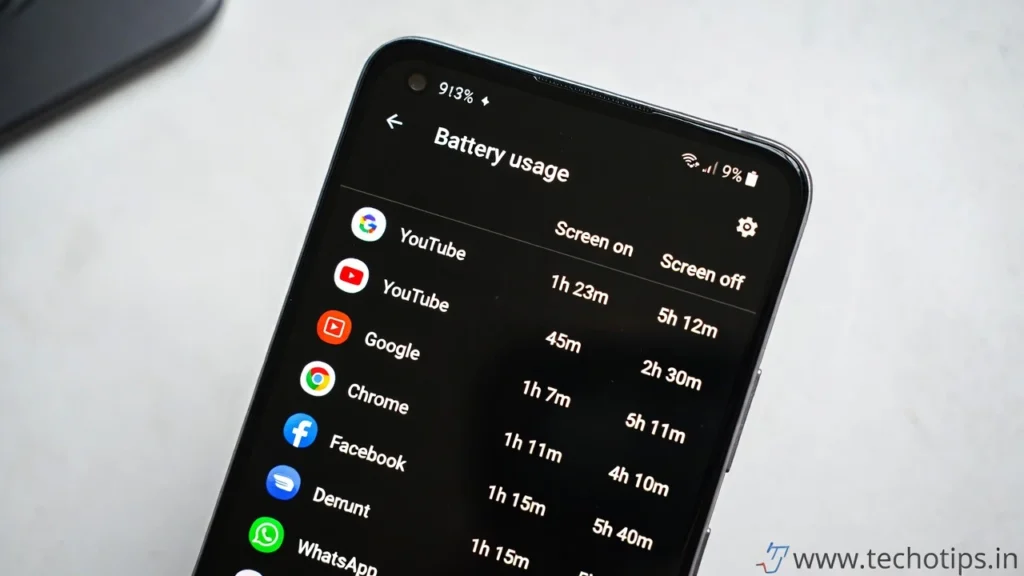
Step 1: Open Settings → Battery → Battery Usage.
Step 2: Look at the battery usage chart showing the last 24 hours. Tap on it to see detailed breakdown.
Step 3: Check the time period when you were sleeping. Apps consuming battery during those hours are your overnight drainers.
What to look for: Any app using more than 5% battery overnight deserves investigation. Apps at the top of the list with high percentages are usually the worst offenders.
Real example from my phone: Instagram was using 12% battery overnight despite me not opening it for two days. Facebook used 8%, and a weather app I forgot I even had was consuming 6%.
Check Battery Usage on iPhone
Step 1: Go to Settings → Battery.
Step 2: Scroll down to see battery usage by app over last 24 hours or last 10 days.
Step 3: Tap “Show Activity” to see screen time versus background activity breakdown.
Key indicator: Apps with high background activity percentages but low screen time are running heavily overnight.
Using Third-Party Apps for Detailed Analysis
While built-in battery stats work for most people, sometimes you need more detailed information about android apps battery usage.
AccuBattery (Android):
Free app that tracks battery consumption in real-time. Shows which apps use power even when screen is off. Provides detailed wakelock information showing apps preventing deep sleep.
Battery Life (iPhone):
Shows detailed battery statistics including which apps are actively running in background. Helps identify unusual drain patterns.
My approach: I use built-in battery stats first to identify obvious problems, then AccuBattery if I need deeper analysis of mysterious drain that’s hard to pinpoint.
Read Also : Why Phone Battery Drains Fast Overnight?
Common Apps Draining Battery Overnight
After monitoring dozens of phones and testing various apps, these categories consistently appear as the worst battery drainers.
Social Media Apps
Facebook, Instagram, TikTok, Snapchat, and Twitter are notorious for apps draining battery overnight.
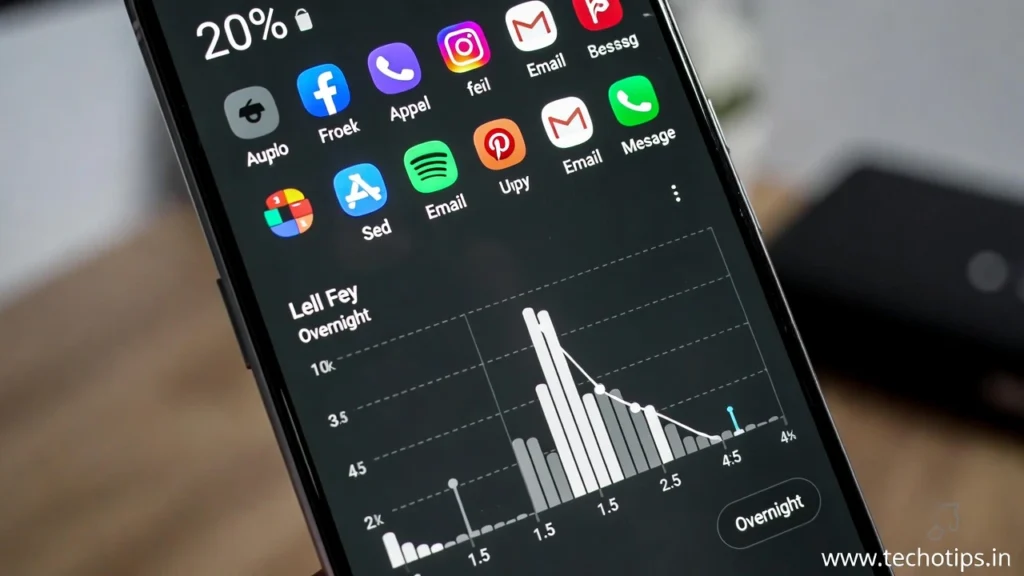
Why they drain so much:
Constant background refresh checking for new content every 5-15 minutes.
Location tracking running continuously for features like location tags and nearby friends.
Video and image preloading so your feed appears instantly when opened.
Multiple notification channels staying active simultaneously.
My testing results: Disabling background refresh for Facebook alone reduced my overnight drain by 8%. Combined with Instagram and TikTok restrictions, total reduction was 18%.
Email Apps
Gmail, Outlook, Yahoo Mail, and third-party email apps stay busy all night.
Battery drain causes:
Push notifications requiring constant server connections.
Automatic syncing of multiple email accounts every few minutes.
Downloading email attachments in background.
Indexing emails for search functionality.
Solution that worked: Changed email sync from “push” to “manual” for non-critical accounts. My work email still pushes instantly, but personal emails only check when I open the app. Overnight drain dropped 6%.
Messaging Apps
WhatsApp, Telegram, Signal, Facebook Messenger, and similar apps need to stay connected for instant message delivery.
The challenge: These apps legitimately need background access to receive messages. You can’t completely disable them without missing messages.
Smart approach: Keep one primary messaging app unrestricted for important contacts. Restrict secondary messaging apps you use less frequently. For example, I keep WhatsApp unrestricted but restrict Facebook Messenger since I rarely get urgent messages there.
News and Content Apps
News apps, RSS readers, podcast apps, and content aggregators often consume surprising amounts of battery overnight.
Hidden drain sources:
Automatic article downloads for offline reading.
Video content preloading.
Constant feed refreshing checking for breaking news.
Location-based news filtering running continuously.
Discovery: A news app I used maybe twice a week was consuming 7% battery nightly by downloading dozens of articles I never read. Uninstalling it immediately improved overnight battery life.
Fitness and Health Apps
Step counters, sleep trackers, fitness monitors, and health apps run continuously by design.
Battery consumption reasons:
Constant motion sensor monitoring.
GPS tracking for outdoor activities even when you’re not exercising.
Heart rate monitoring if connected to wearables.
Background syncing with fitness platforms and smartwatches.
Balance needed: These apps need some background access to function, but many request more permissions than necessary. Review their settings and limit tracking to only when actively using them.
How to Stop Background Apps Battery Drain
Now that you’ve identified apps draining battery overnight, here’s exactly how to stop them from running in background.
Restrict Background Activity for Specific Apps
Android method:
Long-press the app icon on your home screen.
Tap App Info (or the “i” icon).
Select Battery → Background restriction → Restricted.
This prevents the app from running in background unless you actively use it.
Alternative Android path:
Settings → Apps → See all apps.
Find and tap the problem app.
Battery → Background restriction → Restricted.
iPhone method:
Settings → General → Background App Refresh.
Toggle off for specific apps or disable entirely.
Alternatively: Settings → [App name] → Background App Refresh → Off.
My results: Restricting Facebook, Instagram, Twitter, and two news apps reduced overnight drain from 28% to 12%. That’s 16% battery saved just by preventing five apps from running overnight.
Disable Background Data for Apps
On Android:
Settings → Apps → [App name].
Mobile data & WiFi → Background data → Toggle OFF.
This stops the app from using internet in background but allows foreground usage.
When to use this: For apps you use occasionally but don’t need real-time updates. Weather apps, shopping apps, and secondary social media accounts are good candidates.
Turn Off Auto-Sync for Non-Essential Apps
Android sync settings:
Settings → Accounts.
Tap each account and review what’s syncing.
Disable auto-sync for contacts, calendars, or services you don’t actively use.
Example: I had three old email accounts still syncing contacts and calendars I never looked at. Disabling their auto-sync saved 3-4% overnight.
Use Battery Optimization Features
Android Adaptive Battery:
Settings → Battery → Adaptive Battery → Turn ON.
This learns which apps you use frequently and restricts others automatically over time.
After a week, it accurately identified my usage patterns and restricted background activity for apps I rarely opened.
Put Apps to Sleep (Samsung, OnePlus, etc.):
Many Android phones have “Put apps to sleep” or “Deep sleep” features.
Settings → Battery → Background usage limits.
Add apps to the sleep list that you want completely prevented from running in background.
iPhone Low Power Mode:
Settings → Battery → Low Power Mode.
This aggressively restricts background activity system-wide. Enable it overnight for maximum battery saving.
Manage Notifications and Permissions
Review app permissions:
Settings → Privacy → Permission manager (Android).
Settings → Privacy (iPhone).
Check which apps have location, camera, and microphone access they don’t really need.
Location is a huge drain: Apps with “Always” location access constantly track you. Change to “While using app” or “Never” for apps that don’t need it.
My discovery: Five apps had “Always” location access for no good reason. Changing to “While using” reduced overnight drain by 5%.
Advanced Tips for Stopping Battery Drain
If basic restrictions didn’t solve your problem with apps draining battery overnight, try these advanced solutions.
Uninstall or Replace Battery-Hungry Apps
Sometimes the best solution is removing the app entirely.
Alternatives that use less battery:
Use mobile websites instead of apps for services you access occasionally. Facebook, Twitter, and Reddit all work fine in browsers with less battery drain.
Find lighter alternative apps. For example, “Lite” versions of Facebook, Messenger, and other apps use significantly less battery.
Use built-in apps when possible. Stock email and weather apps often consume less battery than third-party alternatives.
What I did: Replaced three heavy apps with their mobile websites saved in Chrome. Overnight drain reduced by 9% without losing functionality. Apps Draining Battery Overnight? How to Find & Stop Them.
Schedule Battery Saver Mode
Android automated scheduling:
Settings → Battery → Battery Saver.
Set schedule → Based on routine.
Your phone learns when you typically sleep and automatically enables battery saver during those hours.
Manual scheduling alternative:
Use automation apps like Tasker or MacroDroid to enable battery saver at specific times (like 11 PM) and disable at wake time (7 AM).
Results: Automatic battery saver overnight brought my drain down to just 3-5% consistently.
Clear App Cache and Data
Sometimes apps develop cache buildup causing excessive battery drain.
How to clear cache:
Settings → Apps → [App name] → Storage → Clear cache.
Note: Clearing cache is safe and won’t delete your data. Clearing data will log you out and reset app settings.
When to do this: If an app suddenly starts draining battery after working fine previously, clearing cache often fixes it.
Check for App Updates
Outdated apps sometimes have battery drain bugs fixed in newer versions.
Regular update routine:
Open Play Store (Android) or App Store (iPhone).
Check for updates weekly.
Enable automatic updates for convenience.
Real case: Instagram had a known battery drain bug in version 285 that was fixed in 286. Updating solved the problem immediately for thousands of users.
Preventing Future Battery Drain
After fixing current apps draining battery overnight, these habits prevent the problem from returning.
Weekly Battery Usage Review
Every Sunday evening, spend two minutes checking battery stats.
Identify any new apps creeping up the usage list.
Restrict them before they become a problem.
Be Selective About App Installations
Before installing any app, ask: Do I really need this, or can I use the mobile website?
Check reviews mentioning battery drain before installing.
Grant only necessary permissions during installation.
Keep Apps Updated
Enable automatic app updates so you always have the latest battery optimizations.
Check monthly for system updates that often include battery improvements.
Regular Phone Restarts
Restart your phone once a week.
This clears memory leaks and temporary processes that can cause battery drain due to background apps.
Takes 30 seconds and prevents many issues before they start.
When to Consider Factory Reset
If you’ve tried everything and still experience severe phone battery draining while idle, a factory reset might be necessary.
Signs you might need reset:
Overnight drain remains above 20% despite all restrictions.
Battery stats don’t clearly identify any specific problem app.
Phone is old and has accumulated years of app installations and configurations.
Before resetting:
Backup all important data, photos, and files.
Write down app list so you can reinstall only what you actually use.
After reset, install apps gradually and monitor battery after each installation to identify problem apps.
My friend’s experience: After two years without a reset, his overnight drain was 35% with no clear cause. Factory reset brought it down to 6%. Sometimes a fresh start is the best solution.
Final Thoughts on Apps Draining Battery Overnight
After weeks of testing and monitoring android apps battery usage, the biggest lesson is that multiple small drains add up to one big problem.
It’s rarely a single app destroying your battery. Usually it’s five to ten apps each using 3-7% overnight that combine into 30-40% total drain.
The good news? Once you identify and restrict the main culprits, the improvement is dramatic and immediate. My phone went from losing 28% overnight to just 4% after following these steps.
Start by checking your battery usage stats right now. Identify the top three apps consuming battery overnight. Restrict their background activity. That simple first step solves the problem for most people.
If needed, work through the advanced solutions until you find what works for your specific situation. The overnight battery drain problem is always fixable with the right combination of restrictions and settings.
Frequently Asked Questions
Which apps drain the most battery overnight?
Social media apps like Facebook, Instagram, and TikTok consistently drain the most battery overnight, often using 10-15% each. Email apps like Gmail and Outlook, messaging apps running constant connections, and news apps downloading content in background also rank high. Check Settings → Battery → Battery Usage to see your specific worst offenders.
How do I stop apps from draining battery overnight on Android?
Long-press the app icon → App Info → Battery → Background restriction → Restricted. This prevents the app from running in background when not actively used. Alternatively, enable Adaptive Battery in Settings → Battery → Adaptive Battery to let Android automatically restrict background activity for rarely-used apps.
Is it safe to restrict background activity for all apps?
No, some apps need background access to function properly. Don’t restrict phone, messages, alarm clock, and apps requiring real-time notifications like work email or primary messaging apps. Restrict social media, news, shopping, and entertainment apps that don’t need instant updates.
Why does my phone battery drain overnight even after restricting apps?
If battery drain continues after restricting obvious apps, check for wakelocks using AccuBattery, ensure WiFi/Bluetooth aren’t searching constantly in areas with weak signal, verify battery health in settings (degraded batteries drain faster), and consider malware scan if drain is extreme (40%+) despite all restrictions.
How much overnight battery drain is normal after restricting apps?
A healthy, well-optimized phone should lose only 3-6% battery overnight during 7-8 hours. If you’re losing 10% or less after restrictions, that’s acceptable but could be better. Anything above 15% suggests remaining apps or settings still need optimization.