My phone started losing 60% battery overnight three weeks ago. Apps I never installed appeared on my phone. Data usage skyrocketed despite barely using mobile internet. Something felt seriously wrong.
Turns out, I had malware causing battery drain that had been running silently for almost two weeks.
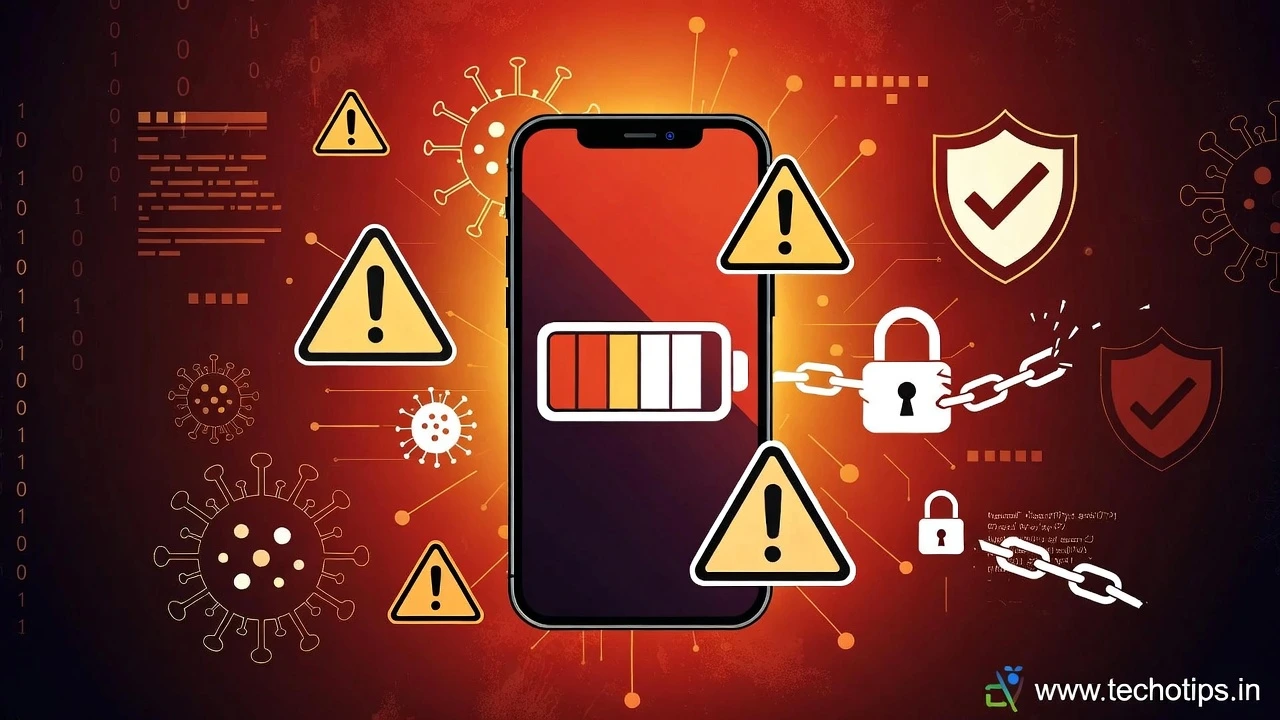
The scary part? Most people assume sudden battery drain is just a settings issue or old battery problem. But sometimes battery draining due to hidden apps actually indicates your phone has been compromised by malware, spyware, or even hackers.
After removing the malware from my phone and helping two friends deal with similar issues, I learned how to spot the difference between normal battery drain and the kind caused by viruses or hacking. This guide shares those warning signs and exactly what to do if you suspect your phone is compromised.
Can Malware Really Cause Battery Drain?
Yes, and it’s one of the most common symptoms of phone malware in 2026.
How malware drains your battery:
Cryptomining malware uses your phone’s processor to mine cryptocurrency in the background. This maxes out your CPU continuously, causing massive battery drain and making your phone hot even when idle.
Spyware constantly monitors your activity, records keystrokes, tracks location, and uploads data to remote servers. All this surveillance activity runs 24/7, destroying battery life.
Adware loads invisible advertisements in background, opening hidden browsers and downloading content you never see. Each hidden ad drains battery and consumes data.
Botnet malware turns your phone into part of a network used for DDoS attacks or spam distribution. Your phone works for hackers without your knowledge, draining battery rapidly.
Real example: The malware on my phone was a cryptominer disguised as a flashlight app I downloaded from a third-party store. It ran constantly in background, causing my phone to lose 50-70% battery daily compared to normal 20-30% usage. [Is Battery Drain a Sign of Hacking or Virus on Your Phone? ]
Read Also : Why Phone Battery Drains Fast Overnight?
Signs Your Battery Drain Might Be Malware
Not all battery drain indicates malware, but these specific patterns suggest phone battery drain due to virus or hacking rather than normal causes.
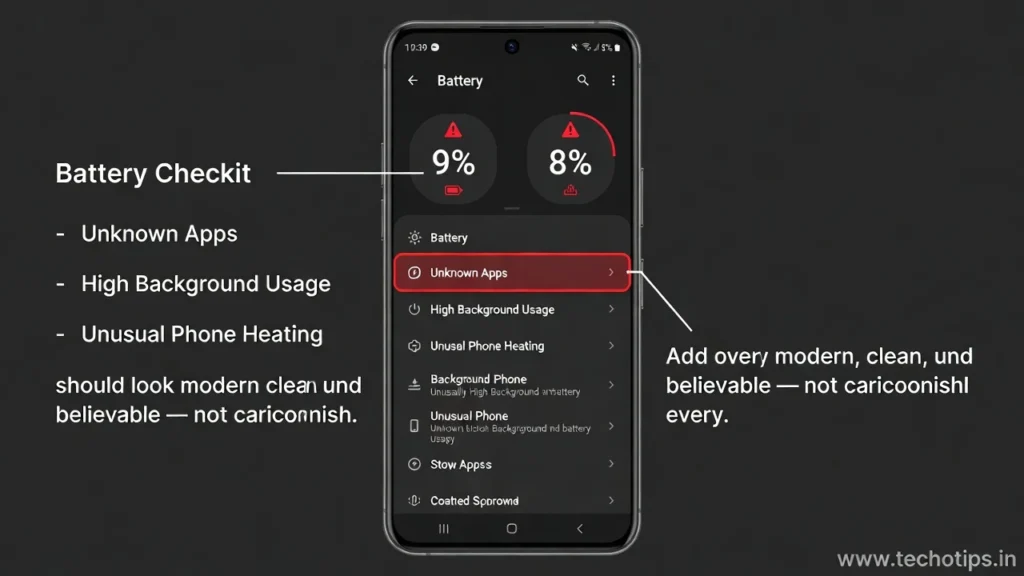
Your Phone Gets Hot Without Reason
Normal: Phone gets warm during gaming, video recording, or GPS navigation.
Warning sign: Phone is hot even when sitting idle on a table, not charging, with no apps actively running.
Why this matters: Malware causing battery drain often runs processor-intensive tasks continuously. Cryptominers especially generate significant heat as they max out your CPU.
My experience: My phone’s back was uncomfortably hot at 11 PM while I slept. Nothing was running that I knew of, yet the phone felt like I’d been gaming for an hour.
Battery Drains Extremely Fast Suddenly
Normal: Gradual battery degradation over months or battery drain after updates that improves within a week.
Warning sign: Battery life suddenly drops from lasting full day to dying in 4-5 hours, with no changes to your usage patterns.
Red flag pattern: If you’re experiencing phone battery draining without use, losing 40-50% overnight when it normally loses 5-10%, something abnormal is running.
Check this: Compare current battery drain to what you experienced a month ago. Sudden dramatic changes without explanation deserve investigation.
Unknown Apps Appear
Most obvious sign: Apps you definitely didn’t install appear in your app drawer or app list.
How to check: Settings → Apps → See all apps. Sort by install date and look for unfamiliar apps, especially those with generic names like “System Update,” “Security Manager,” or “Device Cleaner.”
Sneaky malware behavior: Some malware hides from the app drawer entirely but still shows up in Settings → Apps. Always check the full app list, not just visible icons.
What I found: An app called “Android System Manager” that I’d never installed was consuming 35% battery daily. It had a generic system-looking icon designed to blend in.
Unusual Data Usage
Check data consumption: Settings → Network & Internet → Data usage → Mobile data usage.
Warning pattern: Apps you rarely use or don’t recognize appear at top of data usage list, sometimes consuming gigabytes when they should use almost nothing.
Why malware uses data: Spyware uploads your information to remote servers. Adware downloads advertisements. Cryptominers communicate with mining pools. All require constant data usage.
My case: The malware on my phone used 4.2 GB in one week despite me being on WiFi most of the time. It was uploading mining results continuously.
Apps Crash or Phone Freezes Frequently
Normal: Occasional app crashes, especially after updates.
Suspicious: Multiple apps crashing daily, phone freezing during simple tasks, or random reboots without explanation.
Why this happens: Malware consumes system resources, leaving insufficient memory and processing power for legitimate apps. The competition for resources causes instability.
Ads Appear Everywhere
Major red flag: Ads showing up on your home screen, lock screen, or notification bar when no app is open.
Adware behavior: Full-screen ads randomly interrupting you, ads appearing when unlocking phone, or notification ads for products you never searched for.
How to verify: If ads appear outside of apps and browsers, you almost certainly have adware malware installed.
Increased Background Activity
How to check unusual battery drain: Settings → Battery → Battery usage. Look at “Background” usage percentages for each app.
Normal: Messaging apps, email, and music players might have some background usage.
Suspicious: Apps with 80-90% background usage, especially apps that shouldn’t run in background at all like flashlight apps, calculators, or wallpaper apps.
Pattern to notice: If battery draining due to hidden apps, you’ll see unfamiliar app names with high background percentages or “Android System” using 30-40%+ battery.
Read also : Apps Draining Battery Overnight? How to Find & Stop Them
How to Check if Your Phone Has Malware
If you suspect malware, follow these steps to confirm and identify it.

Step 1: Boot in Safe Mode
Safe mode disables all third-party apps, running only pre-installed system apps.
How to boot in safe mode (most Android phones):
Press and hold the power button.
Long-press “Power off” on screen until “Reboot to safe mode” appears.
Tap OK and wait for phone to restart.
What to check: Use phone normally in safe mode for 2-3 hours. If battery drain stops or reduces dramatically, a third-party app is definitely causing the problem.
My test: In safe mode, my overnight battery drain dropped from 58% to just 7%. This confirmed a downloaded app was the culprit.
Step 2: Check Recently Installed Apps
Go to app list: Settings → Apps → See all apps → Sort by “Recently installed” or “Last updated.”
Look for: Apps installed around the time battery problems started, apps you don’t remember downloading, or apps with suspicious names.
Common malware disguises: System tools, battery optimizers, speed boosters, flashlight apps, and free VPN apps are frequent malware carriers.
Delete suspicious apps: Uninstall anything you don’t recognize or didn’t intentionally install.
Step 3: Run Malware Scan
Use reputable antivirus: Install Malwarebytes, Bitdefender, or Avast from official Play Store.
Run full scan: Let the antivirus scan your entire phone. This takes 5-10 minutes but checks all installed apps and files.
Don’t use random “cleaner” apps: Many “phone cleaner” and “speed booster” apps are themselves malware. Stick to established antivirus brands.
My scan results: Malwarebytes identified the cryptominer app as PUP.Riskware.Miner and quarantined it immediately.
Step 4: Check Permissions for Installed Apps
Review permissions: Settings → Privacy → Permission manager.
Red flags to find:
Camera or microphone access for apps that don’t need them (like flashlight apps).
Location “Always” access for games or simple utility apps.
SMS access for apps that aren’t messaging apps.
Accessibility access granted to unknown apps (huge red flag).
Revoke suspicious permissions: Even if you’re unsure about an app, revoke any permission it doesn’t clearly need for basic functionality.
Step 5: Monitor Data and Battery Usage Daily
For next 3-4 days after removing suspicious apps:
Check Settings → Battery → Battery usage daily.
Monitor Settings → Network → Data usage daily.
Note any apps climbing to the top that shouldn’t be there.
If battery drain continues: Even after removing obvious malware, remnants or additional infections might remain. Factory reset becomes necessary.
How to Remove Malware Causing Battery Drain
Once you’ve identified malware, removal must be thorough to prevent it from persisting.
Uninstall Suspicious Apps
Standard uninstall:
Long-press app icon → App info → Uninstall.
Or Settings → Apps → [App name] → Uninstall.
If “Uninstall” is greyed out: The app has Device Administrator access. Go to Settings → Security → Device admin apps → Deactivate it, then uninstall.
Stubborn malware: Some malware prevents uninstallation. Boot in safe mode first, then uninstall.
Clear App Cache and Data
After uninstalling suspicious apps:
Go to Settings → Storage → Cached data → Clear cache.
This removes temporary files that might contain malware remnants.
Change All Passwords
Assume your data was compromised: If spyware was present, it might have logged your passwords.
Change immediately:
Email passwords Banking app passwords
Social media passwords Any accounts accessed on the infected phone
Enable two-factor authentication: Add extra security layer to important accounts.
Factory Reset (Nuclear Option)
When to factory reset: If malware persists after uninstalling apps, or if you want complete certainty it’s gone.
Before resetting:
Backup photos and important files to computer or cloud (not to phone storage).
Write down important app list.
Note which apps you installed just before problems started (don’t reinstall them).
How to reset:
Settings → System → Reset options → Erase all data (factory reset).
After reset: Install apps gradually from Play Store only, monitoring battery after each installation.
Preventing Future Malware Infections
After cleaning your phone, these habits prevent reinfection.

Only Install Apps from Play Store
Play Store isn’t perfect but Google’s scanning catches most malware before apps are listed.
Never download APKs from websites, Telegram groups, or unknown sources unless you absolutely trust the developer.
My rule: If an app isn’t on Play Store, I don’t install it. The convenience of sideloading isn’t worth the malware risk.
Check App Permissions Before Installing
Before installing any app:
Read permission requests carefully.
Ask yourself: “Does this app genuinely need this permission?”
Deny unnecessary permissions even if the app requests them.
Red flags: Flashlight apps requesting location, games requesting SMS access, or simple utilities requesting microphone access.
Keep Phone and Apps Updated
Security patches matter: Updates often fix vulnerabilities that malware exploits.
Enable automatic updates:
Settings → System → System update → Auto-download over Wi-Fi.
Play Store → Settings → Network preferences → Auto-update apps.
Avoid Sketchy Websites on Phone
Malware sources: Websites offering “free” premium apps, movie streaming sites with constant popups, and sites promising hacks or cheats.
Use browser protection: Chrome blocks many malicious downloads automatically if you keep it updated.
If something seems too good to be true: Free premium apps, unlimited free coins, or “hack” tools are almost always malware.
Review Installed Apps Monthly
Once a month: Settings → Apps → Sort by battery usage or data usage. Look for unfamiliar apps that crept in somehow.
Uninstall unused apps: Apps you haven’t opened in months are just security risks sitting on your phone.
This connects to our main guide on why phone battery drains fast overnight, which covers other common battery drain causes beyond malware and viruses.
When Battery Drain Isn’t Malware
To avoid unnecessary panic, recognize normal battery drain patterns that aren’t security threats.
Normal causes: Apps draining battery overnight due to legitimate background refresh, battery drain after Android updates (usually resolves in 5-7 days), degraded battery health after 2-3 years of use, and weak WiFi or cell signals making phone work harder.
Key difference: Normal battery drain usually has identifiable causes in battery usage stats showing familiar apps. Malware drain often shows unknown apps, Android System using excessive battery, or no clear cause in stats despite severe drain.
How to tell: If battery usage stats clearly show Instagram, TikTok, or games you actually use at the top, that’s normal. If you see “Android System” at 40%+ or apps you don’t recognize, investigate for malware. [ Is Battery Drain a Sign of Hacking or Virus on Your Phone? ]
Read Also :Battery Draining After Android Update? Real Fixes That Work
Frequently Asked Questions
Can a virus drain my phone battery?
Yes, viruses and malware are common causes of sudden battery drain. Cryptominers, spyware, and adware all run constantly in background, consuming CPU and battery. If your battery suddenly drains 50%+ overnight when it normally loses 5-10%, scan for malware immediately.
How do I know if my phone is hacked?
Signs include sudden severe battery drain, phone getting hot while idle, unknown apps appearing, unusual data usage, ads on lock screen or home screen, and frequent app crashes. Boot in safe mode to test if third-party apps cause issues.
What are hidden apps draining battery?
Hidden apps are malware that don’t appear in your app drawer but still run in background. Check Settings → Apps → See all apps to find them. Look for unfamiliar names like “System Manager” or apps you don’t remember installing.
Can malware survive factory reset?
Standard factory reset removes all user-installed apps including malware. However, rare advanced malware can infect system partitions and survive. If battery drain persists after factory reset, the issue is likely hardware degradation, not malware.
Is Android System draining battery a virus?
Not usually. Android System showing 15-20% usage is normal, especially after updates. However, if Android System consistently uses 35%+ battery, malware might be hiding under system processes. Run antivirus scan and check recently installed apps.
How can I check for spyware on my phone?
Install Malwarebytes or Bitdefender from Play Store and run full scan. Check Settings → Apps for unfamiliar apps with suspicious permissions. Review Settings → Privacy → Permission manager for apps with camera, microphone, or location access they don’t need.
Does antivirus drain battery more than malware?
No, legitimate antivirus apps use minimal battery (2-4% daily) compared to malware which can consume 30-50%+ daily. The temporary battery cost of scanning is worth the protection against battery-draining malware and data theft.
About the Author